Connect an assistant
Cozibud documents two ways to connect an assistant. Signing in is the better one: ChatGPT, Claude, Grok Bot, Muse and Gemini use it, and any assistant that speaks MCP can register itself and use it too. An access key serves assistants that cannot sign in and scripts that run on a schedule with no browser. ChatGPT and Claude have been verified by Cozibud. Gemini Spark can connect, but its Cozibud tool use has not yet been verified.
| Signing in | Access key | |
|---|---|---|
| Works with | ChatGPT, Claude, Grok Bot, Muse, Gemini | Anything that sends a bearer token |
| You approve | A consent screen naming the assistant | Nothing; the key is the permission |
| Expires | After a set period, then reconnect | Never, until you revoke it |
| Best for | Everyday use | Assistants that cannot sign in, and scheduled scripts |
The server address
Both routes use the same address. Your assistant asks for it as a connector, server or MCP URL. It is also shown under Settings → Connected assistants as Server address, with a copy button.
https://cozibud.com/api/mcp
Open live connection details to see the address
and tool list enabled on the hosted deployment. A self-hosted installation has
its own /connect page; use the address shown there in place of the public
example throughout this guide.
Before you connect
- Sign in to the Cozibud household you intend to share.
- Review the assistant's identity and requested access on the consent screen.
- Remember that assistant responses can be wrong; review records in Cozibud before relying on them.
- Start the connection from the assistant's own connector flow, using the server address above. Each assistant documents where that is:
- ChatGPT — Follow the ChatGPT steps below to enable developer mode and add the MCP server.
- Claude on the web, desktop or mobile — Follow the Claude steps below.
- Claude Code — Install the Cozibud community plugin.
- Codex —
codex mcp add Cozibud --url https://cozibud.com/api/mcp, thencodex mcp login Cozibudto authenticate. See MCP in Codex. - Cursor and other MCP clients — add a Streamable HTTP server and use the same address. Menu names vary; use the client’s current MCP documentation.
- Muse and Grok Bot — there is no settings screen; ask the assistant directly. See below.
- Gemini — its Spark setup reference is at the bottom of this guide.
- Sign in to Cozibud if prompted.
- On the Connect ChatGPT?, Connect Claude? or similarly named screen, verify the assistant and household. The screen also names the site you will be sent back to; if that is not where you started, choose Cancel. Otherwise choose Allow access.
- Return to the assistant and test a narrow request, such as asking for the latest recorded bottle.

Expected result: the assistant can use only the permissions granted for the selected household.
ChatGPT
Use ChatGPT on the web. Access depends on your account and workspace policy. These steps follow OpenAI’s MCP connection guide and developer mode documentation.
- Open Settings → Security and login and turn on Developer mode.
- Go to ChatGPT Plugins and select + to create a developer-mode app.
- Enter Cozibud as the name and a description such as “Read and record household baby care.” Under Connection, enter
https://cozibud.com/api/mcpas the public MCP server URL. Choose OAuth for authentication; use automatic registration rather than entering your own client credentials. - Create the connection, sign in to Cozibud, and review the household and requested access before choosing Allow access. Back in ChatGPT, check the discovered tools; the app appears under Drafts.
- Ask a normal question, such as “When was the last bottle?”
Claude
Claude on the web, desktop and mobile adds Cozibud as a custom connector; Claude Code installs the Cozibud community plugin or adds the server from the command line. The connector and command-line routes have been verified by Cozibud.
- In Claude on the web or desktop, open Settings → Connectors → Add custom connector. See Get started with custom connectors.
- Enter Cozibud as the name and
https://cozibud.com/api/mcpas the remote MCP server URL. Leave the advanced OAuth fields empty; Cozibud registers the client automatically. - Add the connector, sign in to Cozibud, and review the household and requested access before choosing Allow access.
- Ask a normal question, such as “When was the last bottle?” Connectors added on the web are also available in the Claude mobile apps.
Claude Code plugin
In Claude Code, install the Cozibud community plugin. It adds the Cozibud server together with a caregiver skill that tells Claude when to look up or record care in Cozibud. Run these two commands inside Claude Code:
/plugin marketplace add rongduan-zhu/cozibud-claude-plugin
/plugin install cozibud@cozibud-plugins
The install command opens the plugin's details; choose Install for you so Cozibud is available in every project. Then run /mcp, choose the Cozibud server and authenticate. Sign in to Cozibud and review the household and requested access before choosing Allow access. The plugin contains no credentials and runs no local code; its source is on GitHub. Claude Code does not update plugins from this marketplace automatically; to get a newer version, run claude plugin update cozibud@cozibud-plugins in your terminal. See Install and manage plugins.
If you prefer not to install a plugin, add the server directly with claude mcp add cozibud --transport http https://cozibud.com/api/mcp, then /mcp and choose to authenticate. See MCP servers in Claude Code.
If the assistant does not use Cozibud automatically
After connecting, ask a normal question such as “How was Jasper’s sleep?” or “When was the last bottle?” Cozibud tells compatible assistants to consult the household care record for questions about sleep, feeding, diapers, pumping, growth, activities and recent care, even when you do not name Cozibud.
If the answer does not use your records, name Cozibud MCP explicitly in your request:
What was Jasper’s last feeding session? Get the data from Cozibud MCP.
You can also ask the assistant to save this preference in its memory:
Remember this: for retrieving and recording my baby’s activity, always use Cozibud MCP.
If the assistant supports saved memory, check that it saved the preference. Otherwise, repeat the instruction when needed. A reply based only on chat history is not a lookup of your Cozibud records.
Muse and Grok Bot
Muse and Grok Bot have no connector settings; you ask them to connect.
- Send the assistant a message such as: "Connect to the MCP server at https://cozibud.com/api/mcp."
- It opens Cozibud's sign-in. Sign in, verify the assistant and household on the consent screen, and choose Allow access.
- Back in the chat, test a narrow request, such as asking for the latest recorded bottle.
Expected result: the assistant reports the connection and answers from your household's records. If it asks for an API key instead of opening a sign-in, use an access key.
Referring to a child by name
The assistant can refer to a child by name or by any nickname you have set — for example "log a wet nappy for 小宝" — in whichever language or script you use. Matching ignores case. Nicknames are set in the Cozibud app on the baby's edit screen; if two children share a nickname, the assistant will ask which one you mean.
Connect with an access key instead
This is the route for any assistant that cannot sign in, and for one that asks for a key rather than opening a sign-in. An access key carries no consent screen, names nobody, and does not expire, so treat it like a password.
- The key is shown once. If you lose it, revoke it and create another.
- Choose read-only unless the assistant needs to record care.

- In Cozibud, open Settings and find API keys. Only a household parent can create or revoke keys.
- Create a key, choose its permissions, and copy it immediately.
- In your assistant, use the server address above, and send the key as a bearer token in the
Authorizationheader:
Authorization: Bearer ob_your-key-here
Expected result: the assistant reaches only the household the key belongs to, with the permissions you chose.
To withdraw it, open Settings, find the key by its short prefix under API keys, and choose Revoke. That takes effect immediately, including for a request already in flight.
Revoke access
Open Settings, find the assistant under Connected assistants, and choose Revoke access. Reconnect explicitly if access is needed again. Never paste passwords, verification codes or private connection tokens into chat.
Access, time and safety boundaries
An assistant reaches only the household you approved. Depending on its granted permissions and the deployment configuration, it can read care records and correction history, inspect running timers, and add or correct records. Relative periods such as “last night” are resolved in that household’s timezone. A read-only connection cannot add, correct or delete records.
With write access, an assistant can also change a baby’s routine times and set recurring caregiver coverage. Ask it to review the current care plan first. For a multi-block schedule, it saves the complete roster atomically, so a partial plan is never left behind; unchanged blocks keep their existing identity. You can also ask “Who is on shift now?” or “Who is next?” Caregiver assignments and those answers use the household timezone and the same role-based name privacy as the app.
It cannot read your password or email address, manage invitations or billing, or perform account exports or account deletion. Use the app and the data-management guide for those tasks. An assistant deletes a care record only when you ask, and a deleted record can be restored. Cozibud records and summarizes care; it does not turn an assistant into a source of medical advice. You may share factual records with a clinician, but do not treat an assistant's summary as a diagnosis or reassurance or use it on its own to change care or delay help. Review important answers and saved records in the app.
The exact enabled tool list and any health-data limitation are shown on live connection details.
Routine times
An assistant can read and change each baby’s routine, the same list of times you see under Settings → baby → Routine. Times are in the household timezone.
get_routineshows the baby’s times and today’s status for each one: done, running, due, upcoming or missed. With no times yet, it offers times suggested from the last 7 days, and the assistant adds only the ones you accept.set_routine_timeadds a time or changes one: the activity (bottle, nursing, sleep, pump, nappy or solids), the clock time, the days it repeats, an optional name such as Nap, and an optional aim and bottle contents. It needs write access and does not log any care.delete_routine_timeremoves one time. Logged care is not changed. It needs write access.
list_care_plans returns the routine times together with caregiver shifts. Care logged through an assistant ticks off a matching time just as it does in the app. Try “Add a 120 ml formula bottle at 7:00 every day to Robin’s routine” or “What’s left on Robin’s routine today?”
General troubleshooting
First ask a narrow question such as “When was the last bottle?” and name Cozibud if the assistant answers from chat history. If the connection fails, check Settings → Connected assistants, reconnect or revoke and add it again, then retry. If it still fails, use Report in Cozibud or email support with the assistant name, the time of the attempt and the error it showed. Never send an access key, password or verification code in a report.
Gemini Spark
Gemini Spark can complete the MCP connection flow and Cozibud can appear under Connected Apps. Cozibud has not yet verified Gemini's read and write tool calls, so we do not currently claim that the integration works beyond connection. Testing is still in progress.
Google’s custom app guide requires Spark access, a personal Google Account, age 18+, US location, English, and Keep Activity on. Add the app on the web; connected apps can then be used in Spark on web or mobile. If the option is missing, check those requirements.
-
On a computer, open Gemini and Settings & help. Google documents a direct Connected Apps entry; some layouts show Personal Intelligence first, as pictured below.
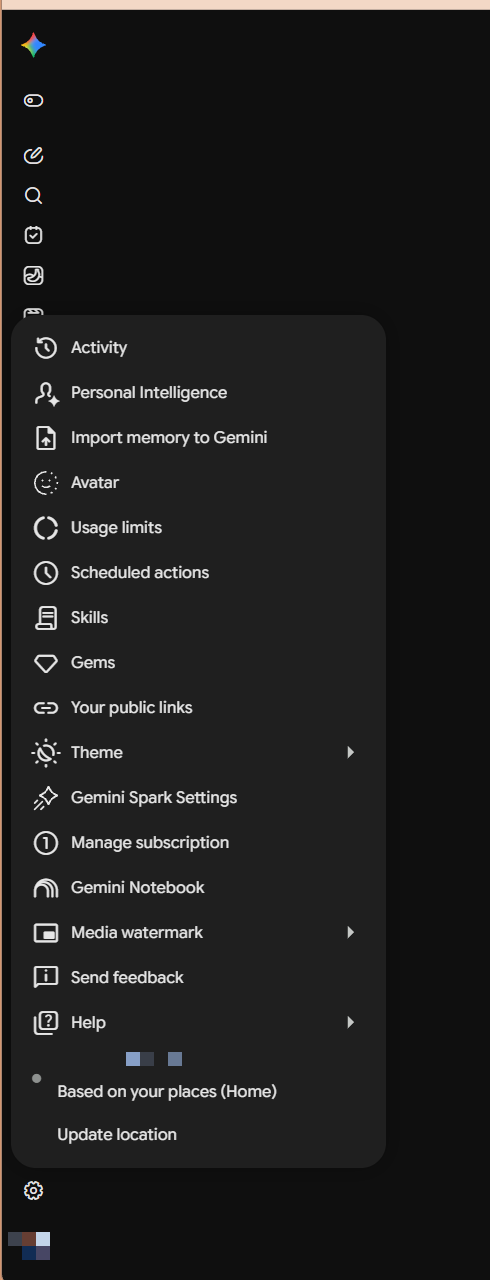
The Personal Intelligence entry in Gemini's settings menu. -
Choose Connected Apps, directly or inside Personal Intelligence.
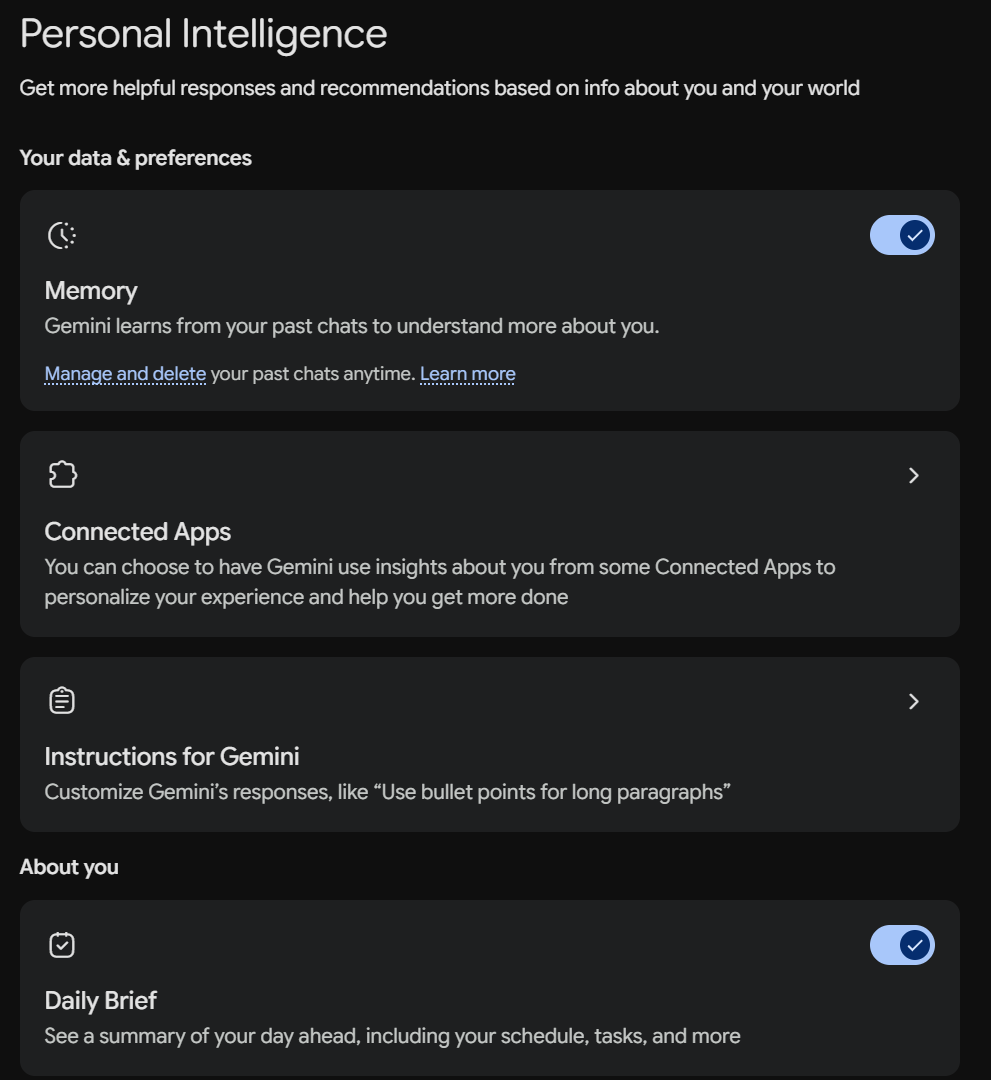
Open Connected Apps from the Personal Intelligence page. -
Under Custom apps for Spark, paste
https://cozibud.com/api/mcpin Add a custom app link to get started. If an app is already connected, choose Add a custom app first. Choose Next.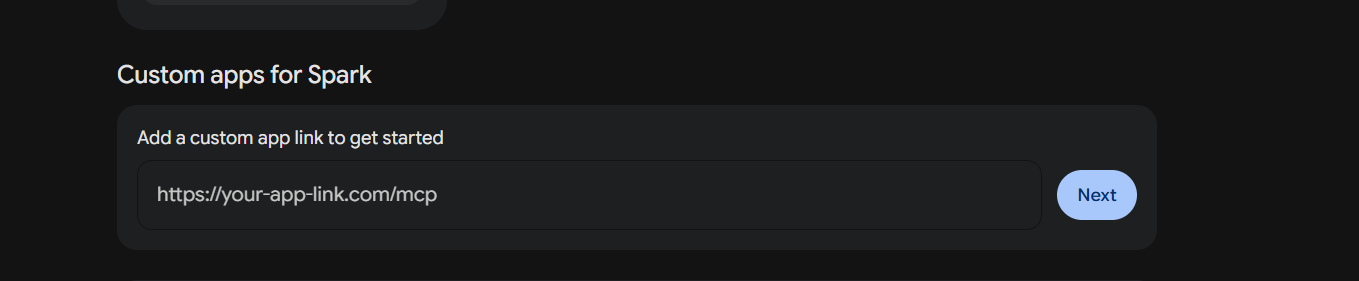
Custom apps for Spark sits at the bottom of the Connected Apps page. -
If Set up a custom connected app repeats the link, choose Next again. Cozibud supports automatic registration, so leave Advanced Settings / Advanced features empty.
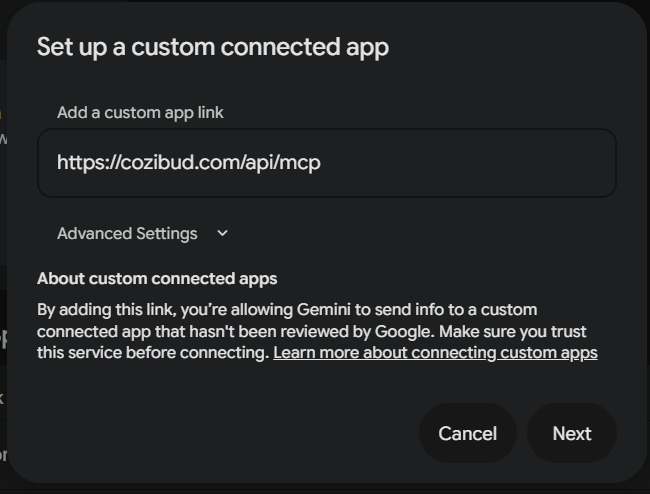
Nothing under Advanced Settings is needed; Cozibud signs you in on a later screen. -
Read what Gemini will be able to do with the connection, tick I understand and accept the security and privacy risks of connecting this custom app, and choose Connect.
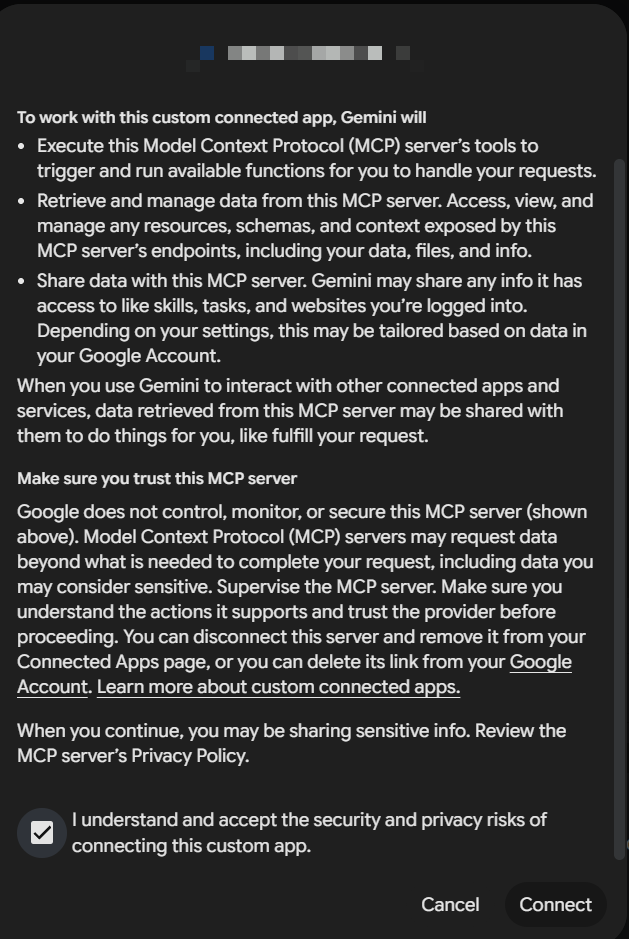
Gemini's own notice. The account shown at the top is yours. -
Gemini then asks you to agree to linking your Google Account with Cozibud. Choose Agree and continue, then sign in to Cozibud and choose Allow access on the Connect Gemini? screen as described above.
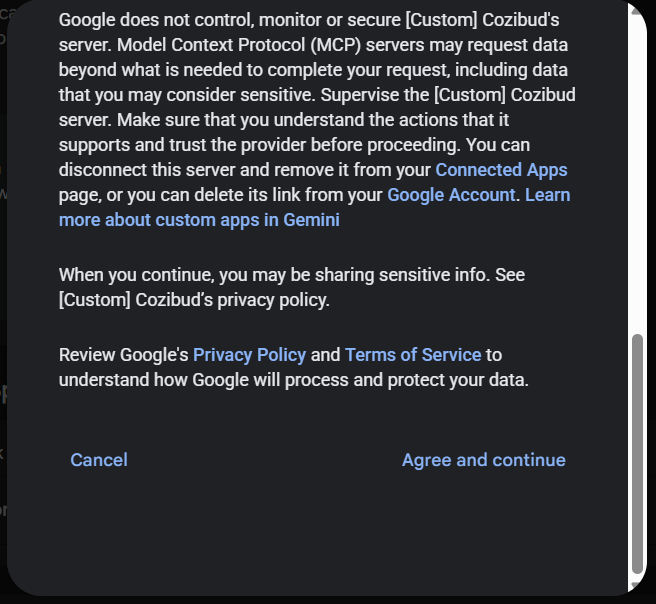
The linking notice names the server as [Custom] Cozibud.
Gemini’s setup dialog sometimes shows We had trouble connecting to this server even though the sign-in completed. This has been intermittent on Gemini’s side rather than a problem with your household. Choose Next or Connect again, or remove the app and repeat the steps; a second attempt usually succeeds.
If it keeps failing, tell us from Cozibud: tap Report at the top of any screen, or ask the assistant to use the Send feedback to Cozibud tool. Include the time of the attempt so we can match it to our logs.
Verification note: Connection has been confirmed, but Cozibud tool use has not yet been verified. Check important results against the Cozibud app.
To disconnect from the Gemini side, remove the app from Connected Apps; to withdraw it from the Cozibud side, follow Revoke access.
In Gemini Spark, type @ and select Cozibud to request a record lookup. Tool use remains unverified. To turn it off, use its toggle in Connected Apps; to unlink, choose More details → Disconnect; to remove it and unlink, choose More details → Remove app.
Future dates and timezones
Care records more than one minute ahead of the server clock are blocked by default, including API, assistant, import and correction requests. Check the timestamp first: local clock times use the household timezone and its daylight-saving offset on that date. In Settings > Preferences, a parent can turn Prevent future events off for intentional future records. This does not change existing records or allow future running timers.
If an assistant reaches its allowance, the error includes the reset time and a link to the household's plan under Settings → Plan. A parent can review usage or upgrade a free household. A smaller date range does not restore an exhausted call allowance.
In-app records with your computer
Keep cozibud-harness relay --provider codex running on your paired computer. The web and Android Assistant can answer baby-care questions, follow up on earlier answers, record care, manage timers, and read summaries, trends, routines and caregiver coverage for the selected baby. For example, ask “When did Robin last sleep?” and then “How long was it?” Browser dictation support varies; typing remains available. Corrections, deletions, restores, bulk changes and care-plan changes show the exact proposal before execution. Choose Confirm change to apply it or Cancel to leave it unchanged. Approval expires after five minutes; if the record changed elsewhere, request a new proposal. Switch the selected child to discuss another baby. Only baby-care tools are available: the assistant cannot access your files, shell, browser, other apps or Mother tools. The server checks your current permissions and reads saved records back before showing a result. This flow requires harness 0.3.0 and a server supporting it; hosted ChatGPT access is separate.
Assistant controls and record cards
In Settings → Connected assistants, enable Voice and text entry and choose Codex on your computer. Codex is the only available mode. Sign in with ChatGPT, Cozibud subscription and Your own API key are marked Not available yet and cannot be selected. Pair your computer using the setup guide and keep its relay running. Turning entry off hides the assistant bar and remembers your mode without changing connected assistants or MCP response cards. Android has the same control directly in Settings → Voice and text entry; the mode and enabled state are saved to your account.
Ask a connected assistant to show a specific saved record, such as “show the last sleep record.” It can look up the latest saved event for the selected child, including records before today, and show its card automatically when the assistant supports MCP App cards; no setting is needed. Use Open in Cozibud to view that exact record in the app. For a record found in a date-range search, the assistant can look it up by its event ID. Lookup cards do not offer Undo. If there is no matching saved record, the assistant should say so; running timers remain separate from saved records.
If dictation stops
Tap Done to send what you said; a pause never sends, and Cancel discards it. Microphone dictation depends on your browser’s speech service. An installed on-device recognizer is preferred where supported. If that service cannot be reached, use the microphone on your keyboard in the message field, type, or try a browser with working speech recognition. On Windows, click the message field and press Windows + H for voice typing. Captured text is kept for review after a failure; choose Send only when the message is complete. A connected Codex computer interprets the text; it does not supply the browser’s speech service.
Complete assistant responses
When a connected assistant supports MCP App cards, a response can show several records and active timers together. Cards cover nursing, bottle and tube feeds, solids, sleep, nappies, potty visits, pumping, growth measurements, temperature, activities, milestones and contractions. Medication and symptom records are not available through assistant connections to cozibud.com; a self-hosted installation can choose to enable them. Completed sleep shows when it began, when the child woke, and active duration, excluding recorded pauses. Notes can be expanded.
Saved, updated, restored and retrieved records have distinct labels. Only a newly saved record offers Undo; retrieved records do not. Running and paused timers show the checked time, rather than claiming a new save. Summaries, daily trends, growth references, routines, caregiver coverage and bulk-operation receipts can also display cards. Empty or unconfirmed results do not claim that care was saved. Open in Cozibud opens the exact record or the relevant app view. Card support depends on the assistant host; the text result remains available.