Record feeding, pumping, sleep and diapers
On iPhone timer notifications and interactive widgets, and Android notifications and 4×1/4×3 widgets, nursing and sided pumping offer Switch side, Pause and End. When paused, Start left or Start right resumes the same timer on that side; End saves it. Compact side buttons show the destination as L/R in English, without arrows, and retain full screen reader labels.
The Android 1×1 widget shows Pause/End while running. When paused, sided sessions show L/R without End; unsided sessions, including Sleep, show Resume alone. A pump started without a side stays unsided; on the surfaces with full controls it offers Pause/End, then Resume/End. End does not require milk output; unmeasured output stays empty. Other supported Sleep notifications and widgets keep their existing paused Resume/Save controls, including Save on the iPhone small widget. Correct start times in the app’s detail view; no running surface offers Started earlier.
Every logging form starts with an editable time that defaults to now. Record earlier events through the same form.
Choose a child first. Cozibud keeps the essential fields short and marks extra details as optional. On any care sheet, open More · notes, tags to add notes and tags. It stays collapsed by default so common entries remain quick.
The Sleep, Nursing and Bottle cards expose the same section before you start or open the full entry sheet.

- On Log, choose Nursing, Bottle, Sleep or Nappy.
- Enter the time. For a completed sleep or bottle, add an end time when it is known.
- Add optional details such as bottle amount, nursing side, or nappy outcome.
- Select Save. The new item appears in Events.
On Bottle, Often logged around this time offers amounts previously saved for this baby and milk type near the chosen time. A shortcut appears after the same amount was logged on at least two days in the last two weeks. Tap it to fill the amount, adjust it if needed, then choose Save bottle. These are your saved records, not a feeding recommendation. With too little matching history, enter an amount or leave it blank.

Record a pumping session
Choose Pump, then enter either one total or separate left and right amounts. The controls step by 20 ml or 0.25 fl oz and start at 60 ml or 2 fl oz. Type minutes and seconds directly or use the step buttons. A split entry records a duration for each breast and shows the combined amount before saving. Add notes, and create removable tag pills such as massage or warm compress by pressing Enter or tapping Add after each tag. Choose Start timer to make the same duration advance live; pause it for a break and resume when pumping continues. While the timer is running, its duration is read-only. Pause the timer to retype minutes and seconds, then resume from the corrected duration.
Previously used household tags appear as filtered suggestions, so caregivers can reuse the same wording with one tap.
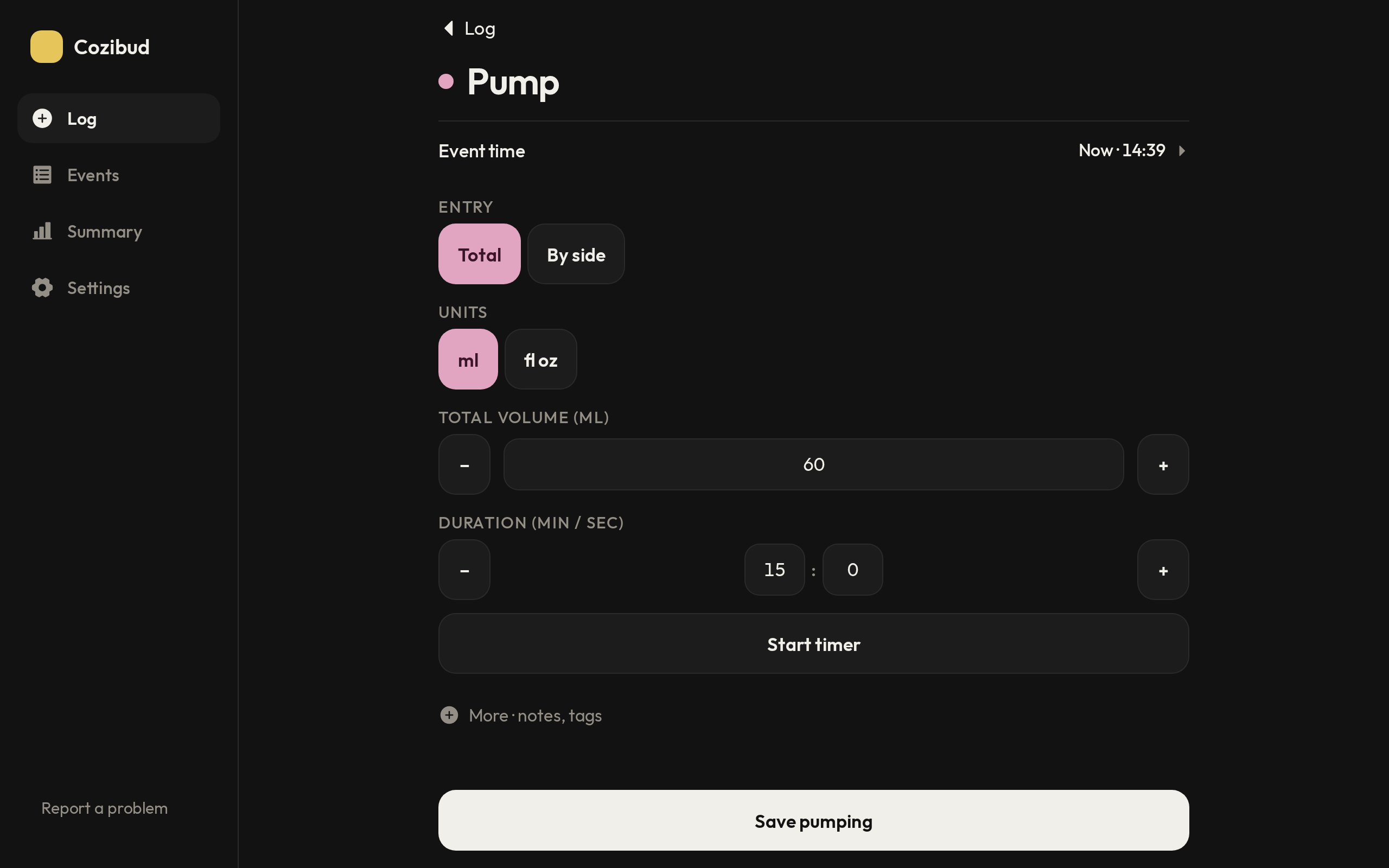

Expected result: the event is visible in the selected child's timeline with its recorded time and details.
Correct a record
Open the item in Events. It opens ready to correct: change the details and choose Save. To drop unsaved changes, go back; Cozibud asks before discarding them. If another caregiver changed it first, reload the current record before trying again so their update is not overwritten.

A bottle amount and many care details are optional. It is better to leave a value blank than estimate it.
Related: Timers and calendar · Offline and pending entries
Routine times
On the web and paired iPhone or Android app, Settings → baby → Routine → Add a goal also lets you create a daily or weekly activity checklist. Choose an activity and a target in times or minutes, for example tummy time twice a day or for 10 minutes a day. You can keep both goals. Saved activity records from any caregiver contribute automatically. Minute goals add the duration of completed activities with a start and end time; point records contribute no minutes. Tap the goal to change its target or remove it. Corrections and deleted records update progress when the page refreshes.
Daily progress resets at midnight in the household timezone; weeks start on Monday. Counts use the period when an activity started, while minutes include only the portion of a completed activity within the period. Ideas for play time shows unfinished play goals that another caregiver can help with. These are your family's chosen goals, rather than prescribed developmental targets.
A routine is a short list of clock times for one baby, such as a bottle at 07:00 or a nap at 13:00. Each time has one activity (bottle, nursing, sleep, pump, nappy or solids), the days it repeats and, if you like, an aim such as 120 ml or 1 h 30.
- Set it up: in Settings, open the baby and choose Routine. Add a time to pick the activity, time, days, an optional name such as Nap, the aim and the milk type. Tap a time to change or delete it. With no times yet, Cozibud suggests times from the last 7 days: choose Use these times or Start empty.
- See what's next: Log shows the next time below the day strip, such as “Bottle · 120 ml, in 51 min” or “due”; tap it to open the routine. The Events list starts today with the next time and a Log button, and the Day view shows it as a dashed block.
- Log it: when a time is due or within the next hour, Log opens or saves that activity with the routine’s aim and milk type filled in.
- It ticks itself off: logging or starting the same activity near a time ticks it off for the whole household, and the record shows a small check. To change that, open the record and choose another time under Counts for, or Not part of the routine.
- Reminders: turn on Routine times in Settings → Preferences → Notification settings for a reminder at each time, unless someone has already logged it. On Android, Log on the reminder saves the bottle, nappy or solids, or starts the timer, without opening the app, with Undo afterwards; In 15 min reminds you again later. If someone else logs it first, the reminder updates to say so.
Each baby has their own routine. Routines from the earlier design aren’t carried over.
Shifts and notifications
On the native Android app, open Settings → Household → Shifts. The schedule and edits sync with the web app.
Open Settings → Household → Shifts to say who is looking after the children, and when. Parents set a weekly pattern once, with Set up weekly pattern, and every week starts as a copy of it. Each shift names the people on it and the children it covers; a shift with nobody on it is Open. Tap a shift to change it: for a shift from the pattern, Save asks whether the change is for that day only or every week from then on, and changes made by hand to a single week are never overwritten. Reset week… puts a week back to the pattern. Tapping an Open shift offers each person with one fact about their day, such as free or on until 17:00, so it can be filled in one step. Family members can read every shift but not change it. A caregiver sees their own shifts named You and everyone else’s time only as Covered or Open, with no names, notes or account identifiers in the screen or the response. A caregiver who can’t make a shift can tell the parents with Can’t make it…; it stays theirs until a parent changes it. The bell on Shifts opens each person’s own reminder choices, and Add to calendar downloads a calendar file of your shifts. On Log, the line under the child’s name opens the current shift’s Handover for everyone. Handover lists every care record from the previous completed shift, including repeated activities, newest first by end time (or start time when there is no end time). Tap a record to open its details, then return to the same Handover. It also shows the previous shift’s note and the current shift’s note. Only the owner of each shift can edit that shift’s note; everyone else can read it. View current shift opens its shift details.
Under Long-running timer reminders, turn on any timer type and choose its threshold in minutes. Cozibud sends that caregiver one notification when the selected child’s timer reaches the threshold, including for timers started outside a routine. Paused timers still count from their original start time so a forgotten session is not missed. Changing the threshold creates a new alert only if the same timer has already reached the new duration.
Open Settings → Preferences → Notification settings. This detail page has the only Notifications switch; use it to turn notifications on or off, then choose quiet hours and reminder types. The entry remains available while notifications are off. Rich timer notifications in Android show ongoing timers with controls; they are separate from reminders for timers left running too long. Expand Long-running timer reminders to enable each applicable event and choose its threshold in minutes (1–1,440). Turn on Routine times for a reminder at each routine time; schedule reminders have their own group. Turning notifications off hides these settings and retains the saved choices. Browser settings use Save notification settings; Android saves each change and shows pending confirmation when offline.
Android uses a rich timer card by default, with a colored timer and action buttons. On Android 16 or later, turn on Android Live Update in the same settings page to use Android’s standard card and request a small timer beside the clock at the top of the screen while using other apps. Availability depends on the phone and its Android settings; when promotion is unavailable, Cozibud uses the rich card. Turn the switch off to return to the rich card. This choice is saved on this phone, works offline, and changes an ongoing notification without restarting the timer. Both styles keep the timer and care controls live.
Bottle volume over time
In Summary, choose Feeds, then Bottle volume to see only the measured bottle amounts for each day. Tap a bar to read its date and volume. Choose Today, 7 days or 30 days to change the range, or Feeds above the chart to return to nursing and bottle counts. The large figure follows the existing per-day summary; the bars show each day's recorded total. This chart has no suggested intake target.
Customize Mother’s Log
Open Mother → Log → Edit cards. Switch contractions, mood, medication and water on or off in the settings panel, then return to Log. Your choices are personal to your account and saved separately for each household on web and phone. Hiding a card keeps its entries available in Events; a running contraction timer stays visible until you finish it. Open Edit cards again to restore any card, even if all cards are hidden. Drag the handles to reorder cards; the order is saved across your devices.